The Page Builder API
The Page Builder API is a set of classes located in the taipy.gui.builder package that lets users
create Taipy GUI pages entirely from Python code.
This package contains a class for every visual element available in Taipy, including those defined in extension libraries.
To access the Page Builder classes, you must import the taipy.gui.builder package in your script.
Generating a new page
To create a new page, you must call the Page constructor. This
object not only represents a page but is also a
Python context manager: You will create the
elements this page holds within the with block.
Here is an example of how to create a page using the Page Builder:
from taipy.gui import Gui
import taipy.gui.builder as tgb

if __name__ == "__main__":
    with tgb.Page() as page:
        # add your visual elements here

    Gui(page).run()
Elements are added in the with block for the page object.
Then, the page is added to the Gui instance, as it would be done for any other page type.
Adding elements
Creating the element classes within a Page context is enough to add them to the page:
with tgb.Page() as page:
    tgb.input()
In this example, we add an empty input
control by creating a new instance of the input class.
When run, the application would show a page looking like this:


Note that elements can also be added to a page using the Page.add() method.
The code above could have been written as:
page = tgb.Page()
page.add(tgb.input())
Setting property values
Let's now add another element and set the element properties to achieve something more significant:
with tgb.Page() as page:
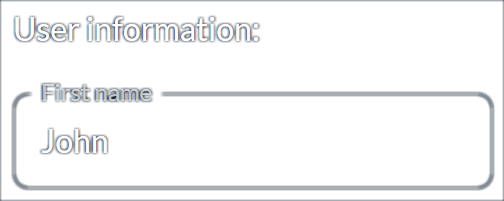
    tgb.html("p", "User information:")
    tgb.input("John", label="First name")
The html element lets us add a label to the page showing the text content of the generated
<p> tag.
This code could have been written differently for an identical result:
page = tgb.Page()
page.add(tgb.html("p", "User information:")).add(tgb.input("John", label="First name"))
Note how, in the input control, we use the property names of the control as parameters to the
class constructor.
The first parameter is set to the element's default property. Because value is the default
property for the input control, we could have
built the control using:
tgb.input(label="First name", value="John")
Now, here is what the page looks like after those changes:

The html element can also be set specific properties. The name and values of the properties
must be valid from the HTML standard standpoint.
Here is how we could modify the creation of the html element by changing its style:
tgb.html("p", "User information:", style="font-weight:bold;")
The impact of this change is reflected in the page:


Compared to the previous example, you can see that the label uses a bold font weight.
Setting functions
If a property expects a function, you can use a lambda function directly expressed as Python code.
Indexed properties
Some elements of Taipy GUI (such as
chart,
table, or
layout) have indexed
properties. The syntax to express these property names, where the root name of the property
is followed by the index value between square brackets, is not supported in the Page Builder
API.
To express an index property with the Page Builder API, you must create an argument name made
of the root name of the property, followed by two underscore characters, followed by the index
value: the_property[the_index] in Markdown or HTML
must be expressed as an argument called the_property__the_index in the Page Builder API.
The Page Builder API does support index values that are not Python identifiers or literals.
Lambda function as a property value
Using a lambda function as a property value simplifies the creation of dynamic user interfaces, especially when elements need to change based on run-time information. This approach is particularly useful for building loops or handling data that varies at runtime.
For example, consider the following dictionary:
persons = {
    "Albert": 1982,
    "Beatrix": 1955,
    "Cecilia": 2003
}
Suppose we want to create an application that displays the name of each person along with their age,
based on a target year selected via a slider
control. The slider is bound to the variable current_year.
We can use a lambda function to dynamically generate text elements that show each person's name and
their age for the selected year:
for name, birth_year in persons.items():
    tgb.text(lambda current_year: f"{name} would be {current_year-birth_year}")
The names of the parameters for the lambda function must be names of variables that are accessible from the current state.
Binding variables
You can bind your application variables to a property value by setting the property to a string that contains a Python expression that depends on the variables.
Here is how we would use a Python variable to hold the text handled in the input control we
have used so far.
The new code looks like this:
first_name="John"

with tgb.Page() as page:
    tgb.html("p", "User information:")
    tgb.input("{first_name}", label="First name")
And the result is identical to what was shown above.
Expression vs. value
Note that you can not bind a variable by setting the property to the variable value, as in:
   ...
   tgb.input(first_name, label="First name")
input control to the value
of first_name. The control would correctly display the content of the string.However, because Python passes the information by value, Taipy loses the reference to the variable first_name, and there is no binding.
Note that although we could trick Python and perform the binding anyway, doing this would change the semantics of the Python language, which is certainly not what we want to achieve.
To bind elements to variables, you must use a string that contains an expression that references those variables.
Using blocks
The Taipy GUI blocks can help organize the elements on the page.
In the following code, we use the layout block to organize the controls on the page:
first_name="John"
last_name="Carpenter"
age=43

with tgb.Page() as page:
    tgb.html("p", "User information:")
    with tgb.layout("4 1"):
        with tgb.part():
            tgb.input("{first_name}", label="First name")
            tgb.input("{last_name}", label="Last name")
            tgb.input("{age}", label="Age")
        tgb.button("Submit")
The layout block is defined as having two columns, where the first column is four times larger
than the second one.
Here is the resulting display:


Invoking callbacks
Because you can set functions to callback properties, the binding to callback functions is more flexible than when you define page content using text.
Default callbacks
Default callbacks are invoked if not explicitly assigned to callback properties.
Consider the following script:
from taipy.gui import Gui
import taipy.gui.builder as tgb

def on_action(state, id):
    if id == "my_button":
        # Do something...
        pass

if __name__ == "__main__":
    with tgb.Page() as page:
        tgb.button("Press me", id="my_button")

    Gui(page).run()
The button does not define its on_action property: Taipy looks for an on_action() function
in the code and invokes it when the user presses the button.
Named callbacks
The name of the callback function can also be used as a callback property value.
The code changes would be like this:
def my_button_pressed(state, id):
    # Do something...
    pass

with tgb.Page() as page:
    tgb.button("Press me", on_action="my_button_pressed")
The button does not define its on_action property: Taipy looks for a on_action() function
in the code and invokes it when the user presses the button.
Functions as callbacks
You can also use the Python function as a callback property value:
def my_button_pressed(state, id):
    # Do something...
    pass

with tgb.Page() as page:
    tgb.button("Press me", on_action=my_button_pressed)
This would have the same behavior as in the case where you would have used the function name.